

Security issue tracking
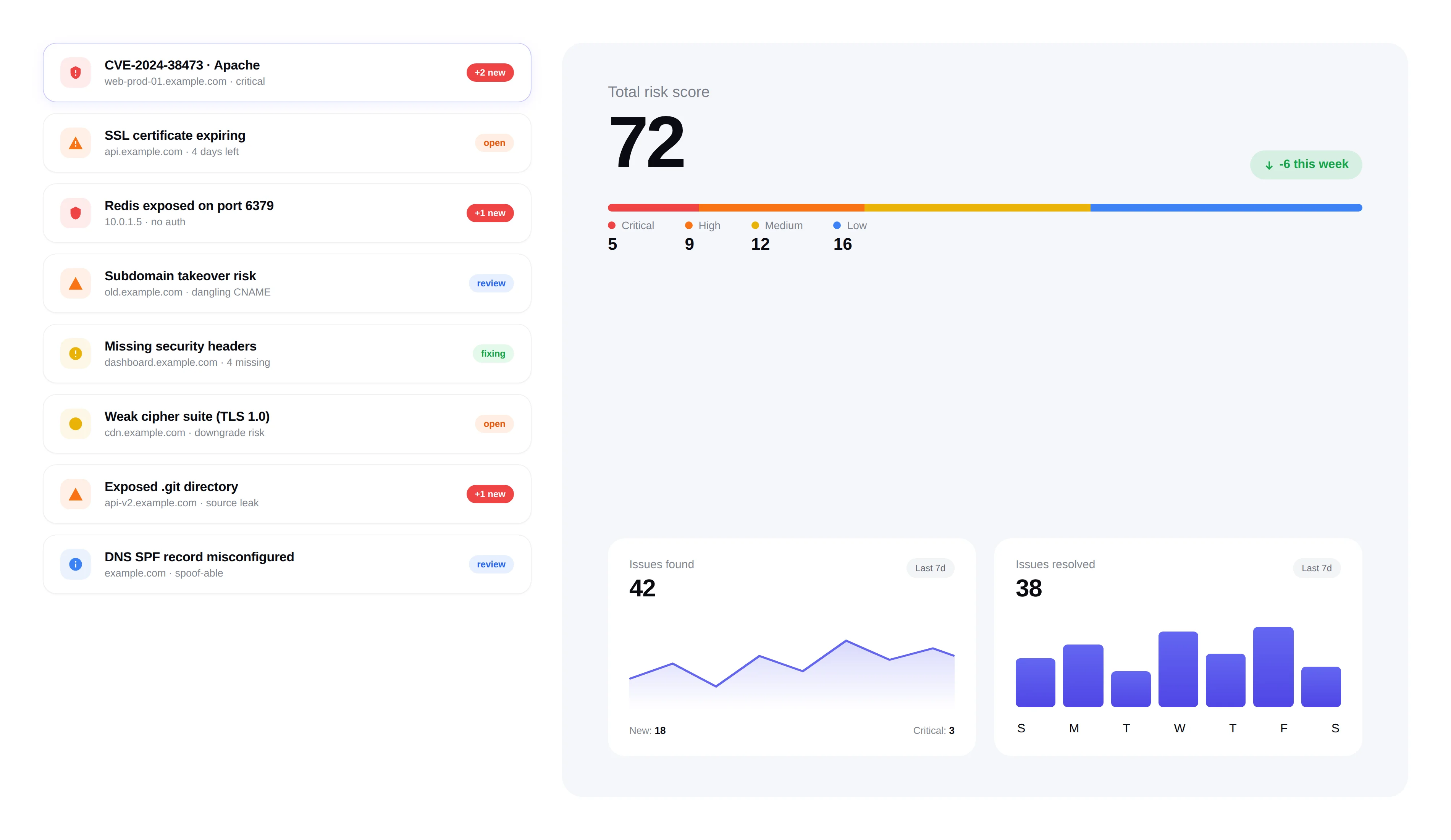
Convert raw findings into actionable issues. Track remediation progress, assign to team members, sync to Jira, and close the loop with auto-verification.
Findings → issues · SLAs · Jira sync · Auto-verify
Issues
73 total · 8 critical
Exposed .env file on staging.example.com
staging.example.com · Critical
 In progress
Missing HSTS header on portal.example.com
portal.example.com · High
 Open
OpenOutdated jQuery 1.12.4 with known CVE
www.example.com · High
 In review
DMARC policy set to p=none
example.com · Medium
 Open
OpenSQL error leaks database schema
api.example.com · Critical
 In progress
Auto-creation
Critical and high-severity findings automatically create tracked issues, so nothing important slips through. Lower-severity findings can be promoted manually when needed.
Critical and high findings auto-create issues immediately
Medium and low findings can be manually promoted to issues
Deduplication ensures the same vulnerability doesn't create multiple issues
Issue lifecycle
Every issue follows a clear lifecycle from discovery to resolution. Track exactly where each security issue stands.
Open
Newly created, awaiting triage or assignment.
In Progress
Assigned and actively being remediated.
Fixed
Remediation complete, verified by the next scan.
Dismissed
Accepted risk or false positive, with documented reason.
Team assignment
Assign issues to specific team members so ownership is clear. Everyone knows what they're responsible for fixing.
Assign issues to individual team members
Track who is working on what across all projects
Notification to assignee when new issues are assigned
Bulk actions
Handle large volumes of issues efficiently. Select multiple issues and apply actions in bulk to save time during triage.
Bulk fix — mark multiple issues as resolved at once
Bulk dismiss — accept risk on multiple low-priority issues
Bulk reassign — transfer issues between team members
Close the loop
FortWatch automatically verifies fixes on the next scan. When a vulnerability is no longer detected, the issue is marked as verified.
Automatic verification through subsequent scans
Reopening if a previously fixed issue resurfaces
Full audit trail of every status change
Frequently asked questions
Answers to the most common questions about findings, issues, assignment, and remediation workflow.
What's the difference between findings and issues in FortWatch?+
Findings are raw scanner output — every individual detection a scan produces, including low-signal noise. Issues are the curated, actionable layer on top: critical and high findings are automatically promoted into issues, duplicates are merged, and your team works off the issue list instead of drowning in raw detections. This separation keeps the audit trail complete while giving security teams a clean queue to act on.
How does issue assignment work?+
Owners, Admins, and Managers can assign any issue to a specific team member in one click. The assignee gets notified, the issue appears in their personal queue, and ownership is visible across the workspace so no issue sits unclaimed. Reassignment is one click and is recorded in the audit log alongside every other status change.
Does FortWatch sync issues with Jira or other ticketing tools?+
Yes. Issues can be pushed to Jira as tickets with severity, CVSS, affected asset, and remediation guidance pre-filled. Status changes sync both ways — close the Jira ticket and the FortWatch issue marks resolved; reopen in FortWatch and Jira reflects it. GitHub Issues and webhook-based integrations work the same way, so your developers keep fixing bugs in the tool they already live in.
How are issues sorted and prioritized?+
By default, issues are ordered by severity — critical first, then high, medium, and low — with the most recently discovered issues surfacing inside each bucket. You can re-sort by asset, assignee, status, or SLA deadline. Info-severity findings are hidden unless you explicitly opt in, so noise never pushes real work below the fold.
Are there SLA deadlines on security issues?+
Yes. Every issue inherits a severity-based SLA: critical 24 hours, high 7 days, medium 30 days, low 90 days. The countdown starts when the issue is created, pauses while dismissed, and resumes on reopen. Breached SLAs are flagged visually and exportable for compliance reporting, so remediation velocity is measurable instead of assumed.
How do I dismiss an issue I won't fix?+
Open the issue, choose Dismiss, pick a reason (accepted risk, false positive, won't fix, duplicate), and add a short note. The issue leaves the active queue but stays in the audit log with the dismissing user, reason, and timestamp. If the same vulnerability resurfaces on a future scan, FortWatch flags the prior dismissal so you can reconfirm the decision rather than silently re-dismiss.
How does FortWatch handle duplicate issues?+
Deduplication runs on the fingerprint of the vulnerability — CVE, affected asset, port, and path — so the same finding across repeated scans doesn't generate a new issue each time. When a duplicate is detected, the existing issue's last-seen timestamp updates and the scan count increments, keeping your queue clean without losing the evidence trail.
What happens if a fixed issue comes back?+
FortWatch verifies fixes on the next scan of the affected asset. If the vulnerability is no longer detected, the issue is marked Fixed and the SLA closes. If a previously fixed issue resurfaces in a later scan, it automatically reopens with a note linking to the prior resolution, so regressions are caught instead of quietly re-appearing as new findings.
Explore more of FortWatch
Every feature runs on one platform and shares the same data. Jump to another, or see the full set.
Scanning & discovery
Secure your entire stack today
Start scanning in under 5 minutes. No credit card required. 7-day free trial included.