

External Attack Surface Assessment
One report on one domain you own: what the public internet can see on it, which issues matter most, and how to fix each one. Emailed within 24 hours of proving the domain is yours.
A document you can forward
A CTO reads it. The engineer they forward it to fixes from it. Every claim in it traces to a finding a scanner stored, and nothing in it says more than that finding proves.
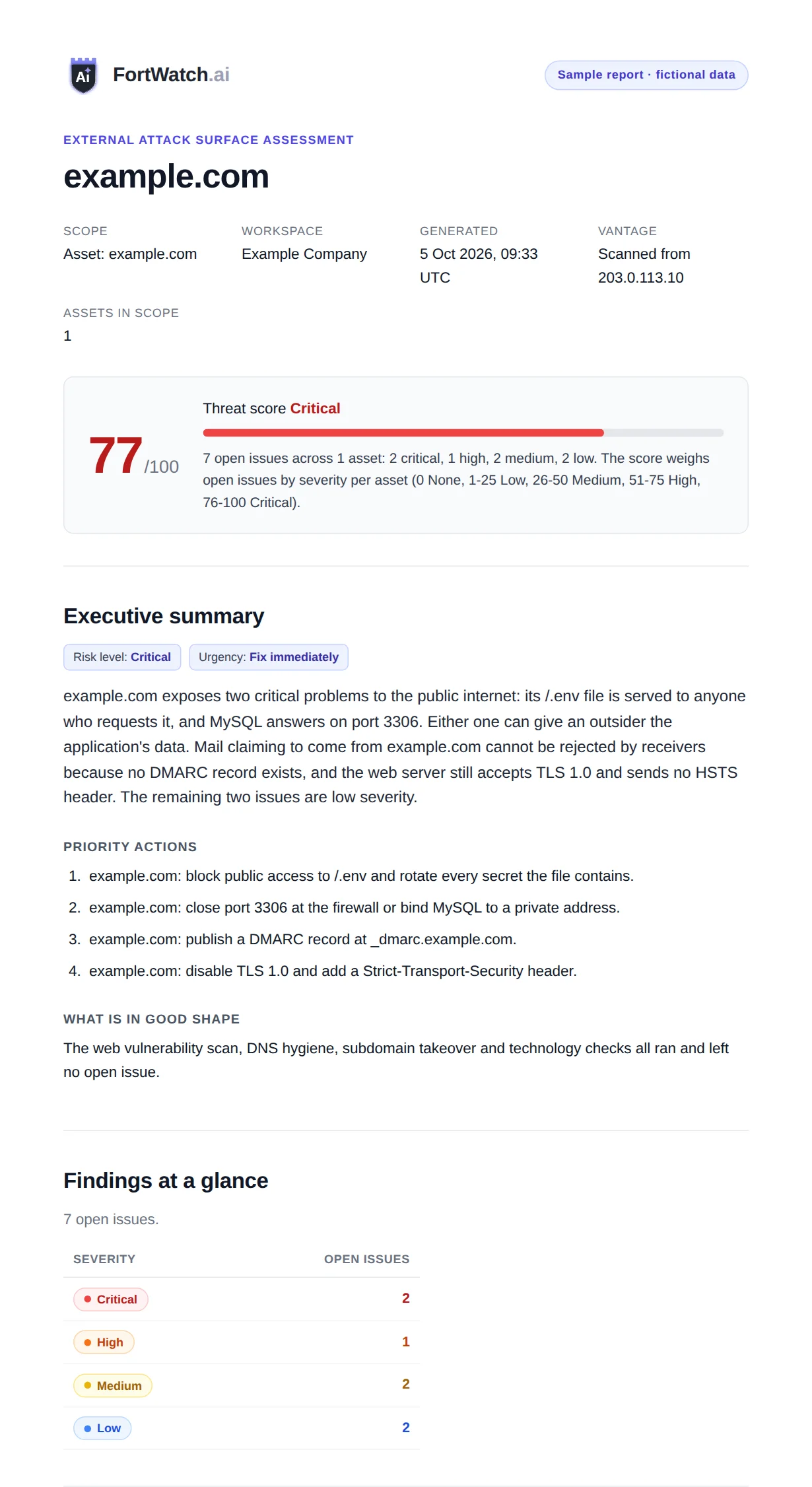
Cover and threat score
The domain, the date, the address the scan ran from, and a threat score from 0 to 100 that weighs open issues by severity.
Executive summary
A risk level, one paragraph on what matters most, the fixes to do first, and what is in good shape. Written by AI from the findings in the report.
Findings at a glance
Open issues counted by severity: critical, high, medium and low.
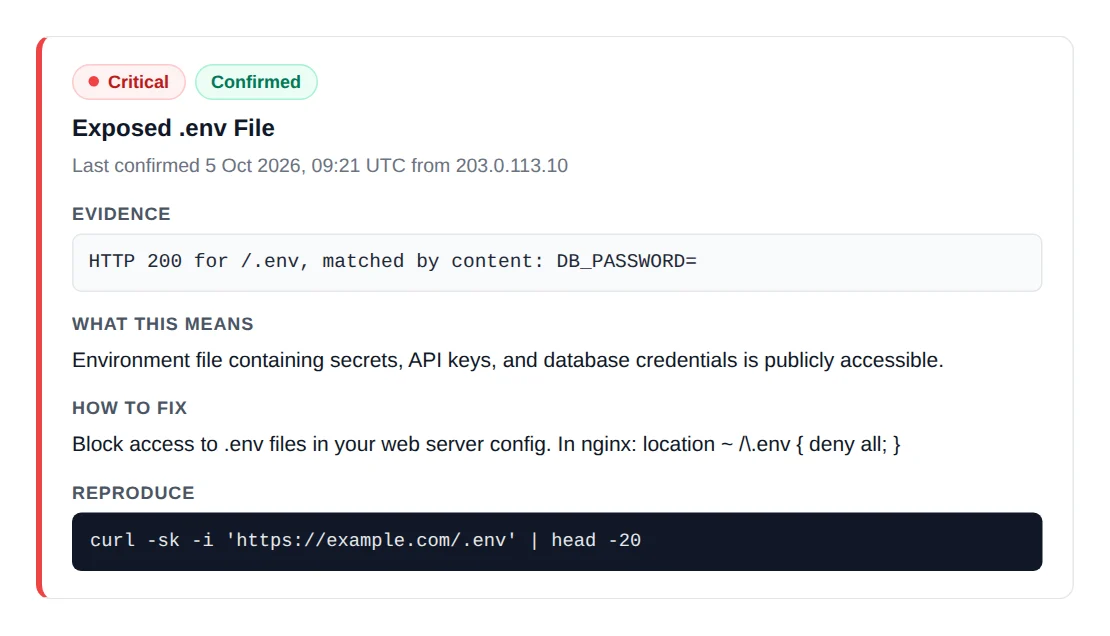
Open issues
Every critical, high and medium issue, up to 25: its exposure state, when the scanner last confirmed it and from where, the evidence, what it means, how to fix it and the command that reproduces it. Lower severities are counted, with a link into the app.
What is fine
The scanners that ran and left no open issue.
Coverage
Scanners that did not complete, are not enabled or do not apply to the domain, so the report never implies more than was checked.
Method
Where the checks came from, which scanners there are, what each exposure state means, and how your own team can verify every claim.
Every issue comes with its proof
Each listed issue states what the scanner saw, when it last confirmed it and from which address. Your engineer runs the command from a machine outside your network and compares the output with the evidence line.
- The exposure state says how firmly the latest scan saw the issue: Confirmed, Inferred, Not confirmed or Host unreachable.
- Severity reflects what the finding would allow if used. It does not change with the exposure state.
- Each issue links to the stored finding in the app, raw scanner output included.
Three steps, one of them yours
The only work on your side is the ownership proof. The scan and the report run unattended.
Enter your domain
Give the domain and your work email, then create your FortWatch account on the next screen. No card.
Prove you own it
We email you one DNS TXT record, written to be forwarded to whoever manages your DNS; they need no account. A small text file served from the site works too.
Receive the report
FortWatch looks for the record every five minutes and starts the first scan itself. The report arrives by email within 24 hours, with a share link you can forward.
What touches your domain, and when
FortWatch scans only what its owner has verified. The report names the address every check came from.
Before you prove ownership
FortWatch resolves the domain in DNS, checks that its front page answers (an HTTP HEAD request, repeated daily), and looks for the verification record or file you published. No port scan and no vulnerability check runs.
After ownership is verified
The scan runs from the public internet with nothing installed on your systems: open ports and services, TLS and certificates, DNS hygiene, email authentication (on apex and www names), HTTP security headers, exposed sensitive files, subdomain takeover, technology versions and known web vulnerabilities.
Public cloud storage, lookalike domains and screenshots are opt-in and off for a first scan.
The domain then stays on a daily scan schedule until you change or remove it.
Common questions about the assessment
Is this a penetration test?
▾
No. A penetration test is a person working through your systems inside an agreed scope. The assessment is automated: FortWatch's scanners run from the public internet against the domain you verified and report what any outside party can see. Nothing is installed on your systems. Each listed issue shows the evidence behind it and the command your team can run to see the same thing.
Why do I have to prove I own the domain?
▾
Because the scan checks ports, services and files, and FortWatch runs that only against infrastructure its owner has verified. The proof is one DNS TXT record at _fortwatch-verify.<your domain>, or one small text file served from /.well-known/fortwatch-verification.txt on the site.
What do you store?
▾
The scan results for your domain, meaning the findings each scanner recorded and the issues made from them, and the report itself as a web page and a PDF. All of it sits inside your FortWatch workspace. Deleting the domain from your workspace deletes its scans, findings and issues.
How long does the share link work?
▾
The share link in the report email is valid for 30 days. You can extend it or revoke it from the report's page in the app; a revoked or expired link stops opening the report.
Who sees the report?
▾
The owners of your workspace receive it by email, and the people you invite to the workspace can read it in the app. Anyone you send the share link to can open it without an account. The link is a long random token and is kept out of search engines.
Is the report written by AI?
▾
The executive summary is: an AI model writes it from the findings in the report. Everything below it, the issues, the evidence lines and the commands, comes from what the scanners stored.
How soon do I get the report?
▾
Within 24 hours of the ownership check passing. The report is generated when the first scan completes and is emailed with a link to it in the app and a share link.
What happens after the report?
▾
The account you created is a FortWatch workspace on the 14-day trial. The domain stays on a daily scan schedule and new issues appear in the app. You can change or remove the schedule, or delete the domain, at any time.
See what the internet sees on your domain
Enter the domain, prove it is yours, and the report arrives by email within 24 hours. No card. Or start the 14-day trial and add every asset you own.